You must connect your users' accounts with our OAuth 2 flow.
To set up mandates and payments for your users, you'll need access to their GoCardless account so you can make API requests on their behalf.
Our OAuth flow allows you to securely obtain an access token for a GoCardless account without having to have your user's password or do any manual setup.
There are four key benefits to getting access to your users' accounts using OAuth:
It's secure
Your users have a secure way to grant you access to their account without needing to send you
their login credentials or an access token. They only need to tell us that you may have access
through a simple online process.
It's fast
You only need to generate and send your user a link to our OAuth flow. From there, they'll
create a GoCardless account or sign in to their existing one, approve your access to their
account, and then we'll send them right back to you with an access token.
It's lucrative
Linking to your users' accounts using OAuth makes you eligible to earn a commission for each
payment they process through your product, either by adding your own fees on top of GoCardless's
or by receiving a share of GoCardless's fees.
It's future-proof
As the GoCardless API gets better and better over time and offers new functionality, you'll be
able to stay up-to-date and use all the latest features.
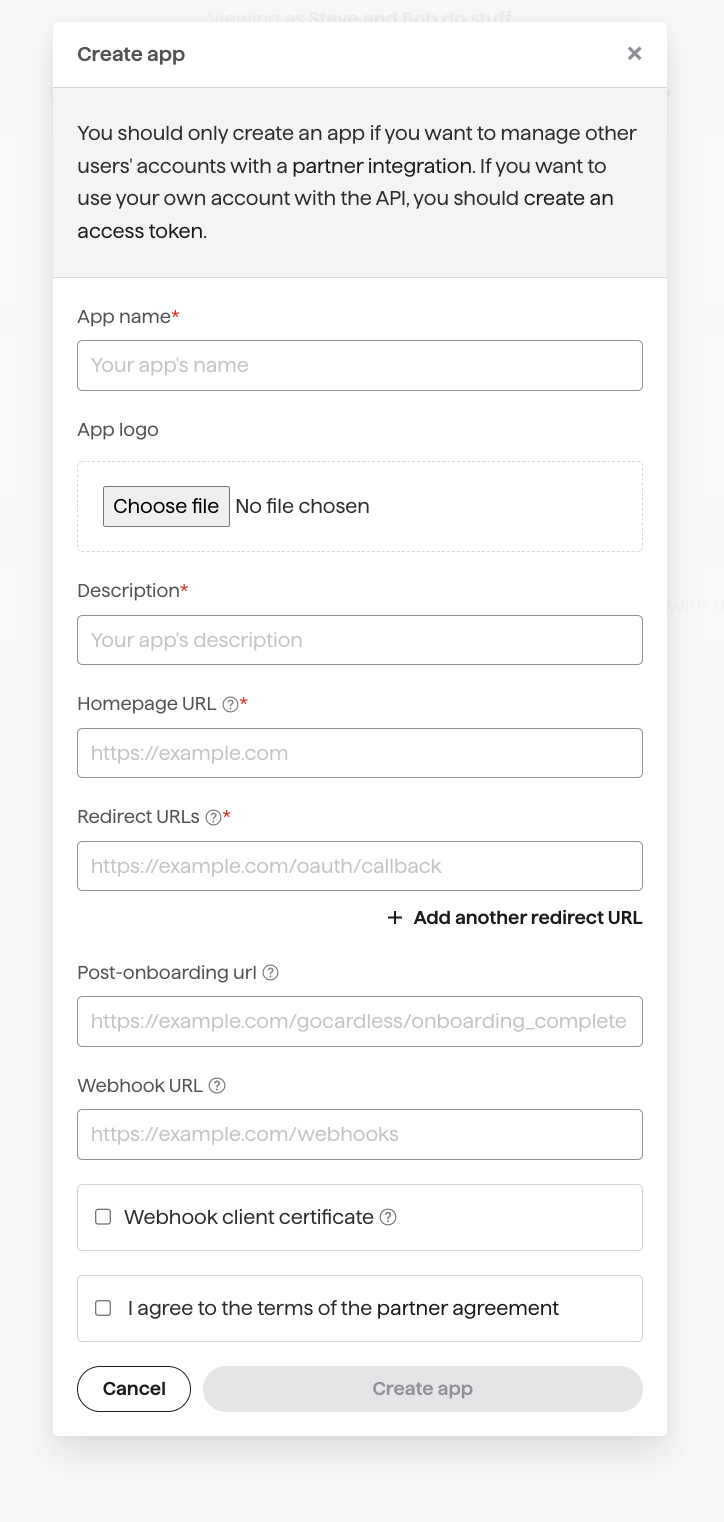
Before we can get started, you need to create an "app" in the sandbox environment which represents your partner's integration in the GoCardless system. You'll be issued with a client ID and secret, which you'll use to identify yourself when sending users to the OAuth flow and swapping codes for access tokens.
Name: a clear, public-facing name. Your users see it when they connect
Description: a short description of your integration
website_url: a page where your users can read more about your product or your integration with GoCardless
webhook_endpoint: so you receive events for all your connected users
You can set your post_onboarding_url and payment_setup_url now, or later when you edit your app. To understand the differences, see sending merchants to your app.
Once your user has completed the OAuth flow, they will be redirected to your application using the redirect_uri parameter you provide. For security reasons, this can't be just any internet URL, so you will need to configure at least one redirect URL here (which must exactly match the parameter). You may wish to add additional redirect URLs, for example when also testing against your local application, but we'll only allow up to 20 redirect URLs in total.
Once you've created an app, you'll see it in the list of your apps in your Dashboard. Click on your newly-created app, and take a note of the Client ID and Client Secret.
Let's get started by installing an OAuth client library:
composer require adoy/oauth2
pip install oauth2client
echo "gem 'oauth2'" >> Gemfilebundle install
<-- Add the following to your Maven file --><dependency> <groupId>com.squareup.okhttp3</groupId> <artifactId>okhttp</artifactId> <version>3.4.1</version></dependency>
Now we've installed the library, we can build a link to the OAuth flow. We'll have to pass in a number of parameters, including the client_id and client_secret, as well as a few parameters that will vary by library. These can include:
Parameter
Description
The URL of the GoCardless OAuth flow
The base of the URL your client library generates. Sandbox: https://connect-sandbox.gocardless.com/oauth/authorize Live: https://connect.gocardless.com/oauth/authorize
redirect_uri
The URL to send your users to once they've agreed to connect their account to GoCardless (and if they deny authorisation or something goes wrong, in which case we'll pass you details of the error). This must exactly match one of the redirect URLs you specified above.
The URL of the GoCardless access token API
The API endpoint used to exchange the code for an access token, after your user is redirected back to your redirect_uri. Sandbox: https://connect-sandbox.gocardless.com/oauth/access_token Live: https://connect.gocardless.com/oauth/access_token
scope
The level of access you want to your users' GoCardless accounts: read_write if your integration sets up mandates, creates payments or makes other changes. Most integrations need this. read_only if it only reads data, for example a reporting dashboard that shows payment volume. A read_only token can't create anything, so choose read_write if you're unsure.
response_type
The kind of OAuth request you're making - only code is supported.
initial_view (recommended)
An optional parameter, set to either signup or login to specify which view we should show when your user enters the OAuth flow. By default, they will see the login view if you're requesting read_only access and the signup view if requesting read_write. Set it to match the button your user clicked, such as login for "Connect an existing account" and signup for "Create a new account".
state (optional)
Any value you pass in here will be included as a query string parameter when we redirect back to your redirect URL. Please note that this value can be tampered with by your user, and so shouldn't be trusted implicitly. We recommend using this parameter for a CSRF Token.
prefill[email] (optional)
Your user's email address. We will prefill this on the login or signup forms to make it quicker and easier for them to complete the flow.
prefill[phone_number] (optional)
Your user's phone number. We will prefill this on the signup forms. Number should be in this E.164 format. It should include the country code and the rest of the number, for example +447599288282.
prefill[given_name] (optional)
Your user's given (first) name. We will prefill this on the signup form.
prefill[family_name] (optional)
Your user's family (last) name. We will prefill this on the signup form.
prefill[organisation_name] (optional)
The name of the user's organisation (for example Acme Widget plc, 2nd Upminster Scout Group or Tim Rogers). We will prefill this on the signup form.
prefill[creditor_type] (optional)
The organisation's business type. This should be one of: charity, company, individual, partnership, or trust
prefill[country_code] (optional)
The country code of the users' organisation in ISO 3166-1 alpha-2 code format. We will prefill this on the signup form.
language (optional)
The language that the login/signup form should be in, is ISO 639-1 format. If the language specified is supported, we will use it. Otherwise, we will fall back to the most appropriate available language for the user, based on factors like their browser settings and location.
<?phprequire 'vendor/autoload.php';// You should store your client ID and secret in environment variables rather than// committing them with your code$client = new OAuth2\Client(getenv('GOCARDLESS_CLIENT_ID'), getenv('GOCARDLESS_CLIENT_SECRET'));$authorizeUrl = $client->getAuthenticationUrl( // Once you go live, this should be set to https://connect.gocardless.com. You'll also // need to create a live app and update your client ID and secret. 'https://connect-sandbox.gocardless.com/oauth/authorize', 'https://acme.enterprises/redirect', // Your redirect URL [ 'scope' => 'read_write', 'initial_view' => 'login', 'prefill' => [ 'email' => 'tim@gocardless.com', 'given_name' => 'Tim', 'family_name' => 'Rogers', 'organisation_name' => 'Tim\'s Fishing Store', ], ]);// You'll now want to direct your user to the URL - you could redirect them or display it// as a link on the pageheader("Location: " . $authorizeUrl);
import osfrom oauth2client.client import OAuth2WebServerFlow# You should store your client ID and secret in environment variables rather than# committing them with your codeflow = OAuth2WebServerFlow( client_id=os.environ['GOCARDLESS_CLIENT_ID'], client_secret=os.environ['GOCARDLESS_CLIENT_SECRET'], scope="read_write", redirect_uri="https://acme.enterprises/redirect", # Once you go live, this should be set to https://connect.gocardless.com. You'll also need to create a live app and update your client ID and secret. auth_uri="https://connect-sandbox.gocardless.com/oauth/authorize", token_uri="https://connect-sandbox.gocardless.com/oauth/access_token", initial_view="signup", prefill={ "email": "tim@gocardless.com", "given_name": "Tim", "family_name": "Rogers", "organisation_name": "Tim's Fishing Store" })authorize_url = flow.step1_get_authorize_url()# You'll now want to direct your user to the URL - you could redirect them or display it# as a link on the pageflask.redirect(authorize_url, code=302)
require 'oauth2'# You should store your client ID and secret in environment variables rather than# committing them with your codeoauth = OAuth2::Client.new( ENV['GOCARDLESS_CLIENT_ID'], ENV['GOCARDLESS_CLIENT_SECRET'], # Once you go live, this should be set to # https://connect.gocardless.com. You'll also need to create # a live app and update your client ID and secret. site: 'https://connect-sandbox.gocardless.com', authorize_url: '/oauth/authorize', token_url: '/oauth/access_token', auth_scheme: :request_body)authorize_url = oauth.auth_code.authorize_url( redirect_uri: 'https://acme.enterprises/redirect', scope: 'read_write', initial_view: 'signup', prefill: { email: "tim@gocardless.com", given_name: "Tim", family_name: "Rogers", organisation_name: "Tim's Fishing Store" })redirect_to authorize_url
// See https://raw.githubusercontent.com/gocardless/gocardless-pro-java-maven-example/master/src/main/java/hello/OAuthController.javaimport org.springframework.web.bind.annotation.RestController;import org.springframework.web.bind.annotation.GetMapping;import org.springframework.http.HttpStatus;import org.springframework.http.HttpHeaders;import org.springframework.http.ResponseEntity;import org.springframework.web.util.UriComponentsBuilder;@RestControllerpublic class OAuthController { private static final String authoriseRedirectUrl = "https://connect-sandbox.gocardless.com/oauth/authorize"; private static final String redirectUrl = "https://bb314345.ngrok.io/redirect"; private static final String clientID = System.getenv("GOCARDLESS_CLIENT_ID"); private static final String clientSecret = System.getenv("GOCARDLESS_CLIENT_SECRET"); @GetMapping("/") public ResponseEntity<String> index() { String oauthUrl = UriComponentsBuilder .fromUriString(authoriseRedirectUrl) .queryParam("client_id", clientID) .queryParam("redirect_uri", redirectUrl) .queryParam("scope", "read_write") .queryParam("response_type", "code") .queryParam("initial_view", "signup") .queryParam("prefill[email]", "tim@gocardless.com") .queryParam("prefill[given_name]", "Tim") .queryParam("prefill[family_name]", "Rogers") .queryParam("prefill[organisation_name]", "Tim's Fishing Store") .queryParam("prefill[country_code]", "GB") .toUriString(); HttpHeaders headers = new HttpHeaders(); headers.add("Location", oauthUrl); return new ResponseEntity<String>(oauthUrl, headers, HttpStatus.FOUND); }}
// This is example code and must be inserted into your application structureprivate readonly string authoriseRedirectUrl = "https://connect-sandbox.gocardless.com/oauth/authorize";private readonly string redirectUrl = "https://acme.enterprises/redirect";private readonly string clientID = Environment.GetEnvironmentVariable("GOCARDLESS_CLIENT_ID");private readonly string clientSecret = Environment.GetEnvironmentVariable("GOCARDLESS_CLIENT_SECRET");public static void redirect(){ var uriBuilder = new UriBuilder(authoriseRedirectUrl); uriBuilder.Query = "?client_id=" + clientID; uriBuilder.Query += "&redirect_uri=" + redirectUrl; uriBuilder.Query += "&scope=read_write"; uriBuilder.Query += "&response_type=code"; uriBuilder.Query += "&prefill[email]=tim@gocardless.com"; uriBuilder.Query += "&prefill[given_name]=Tim"; uriBuilder.Query += "&prefill[family_name]=Rogers"; uriBuilder.Query += "&prefill[organisation_name]=Fishing%20Store"; uriBuilder.Query += "&prefill[country_code]=GB"; Response.Redirect(uriBuilder.ToString());}
With these parameters set correctly, the resulting URL will have the following format:
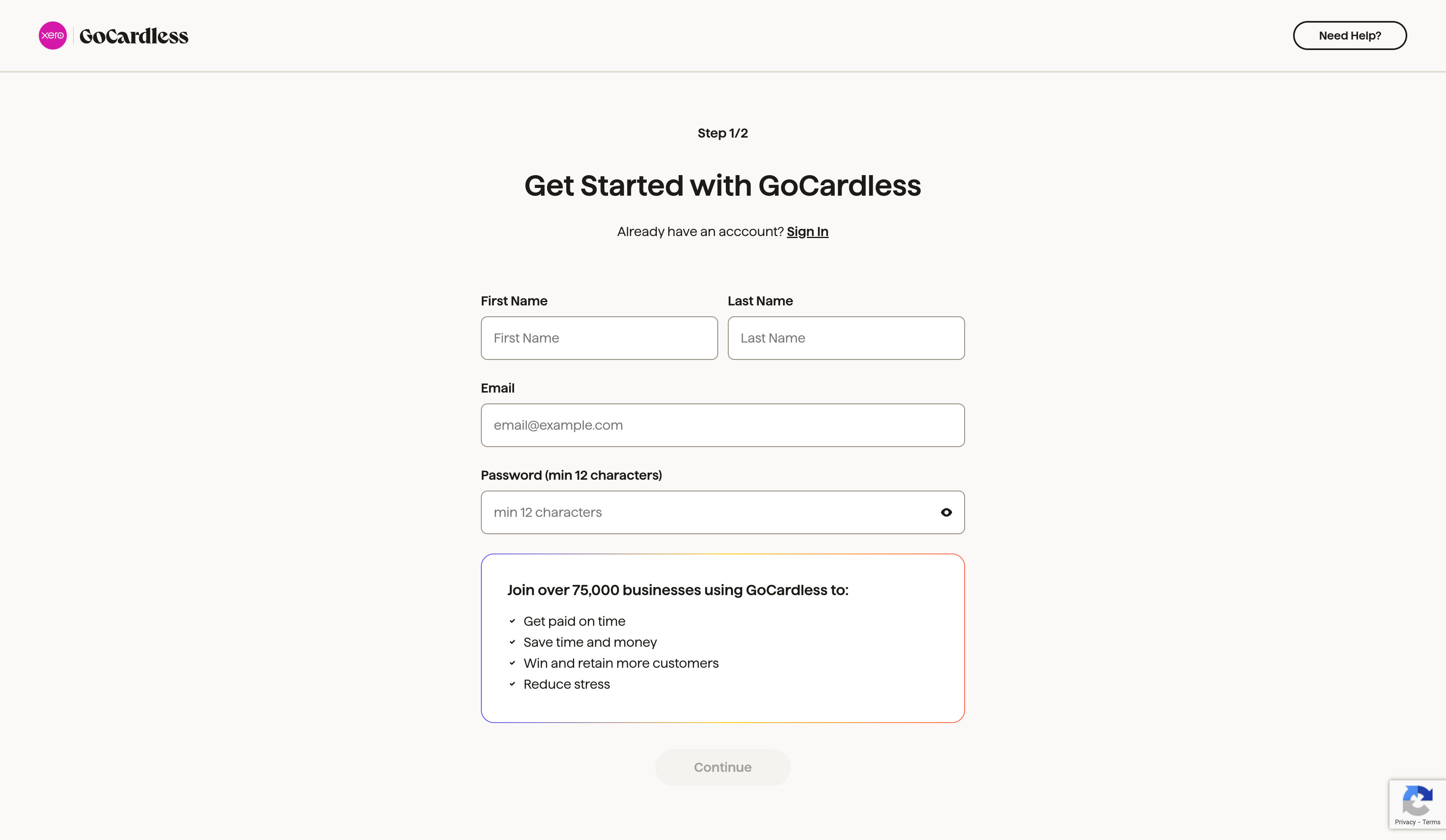
On the signup form, we recommend creating a second sandbox account using a different email
address. This will replicate what your users will experience when connecting to your partner
integration, and will give you an example account that you can use from the perspective of one of
your users.
Once your user has either signed up or logged in and then approved your app's access to their account, they'll be sent to your app's redirect URI with a temporary code which you'll see in the query parameters, as well as any state you provided.
You should use the OAuth client library we set up earlier to fetch an access token using the code. The request must include the same redirect_uri you used in the OAuth link. This is a permanent access token that allows you to use the API on behalf of your merchant at any time.
<?phprequire 'vendor/autoload.php';$client = new OAuth2\Client( getenv('GOCARDLESS_CLIENT_ID'), getenv('GOCARDLESS_CLIENT_SECRET'));// You'll need to use exactly the same redirect URI as in the last step$response = $client->getAccessToken( 'https://connect-sandbox.gocardless.com/oauth/access_token', 'authorization_code', ['code' => $_GET['code'], 'redirect_uri' => 'https://acme.enterprises/redirect']);$payload = [ 'gocardless_access_token' => $response['result']['access_token'], 'gocardless_organisation_id' => $response['result']['organisation_id'],];$currentUser->update($payload);
import osfrom requests_oauthlib import OAuth2Sessionfrom oauthlib.oauth2 import WebApplicationClient# Configurationclient_id = os.environ['GOCARDLESS_CLIENT_ID']client_secret = os.environ['GOCARDLESS_CLIENT_SECRET']redirect_uri = "https://acme.enterprises/redirect"# Authorization endpoint and token endpoint for GoCardless (sandbox in this case)auth_base_url = "https://connect-sandbox.gocardless.com/oauth/authorize"token_url = "https://connect-sandbox.gocardless.com/oauth/access_token"scope = ["read_write"]# Create OAuth2 clientoauth_client = OAuth2Session(client_id=client_id, redirect_uri=redirect_uri, scope=scope)# Step 1: Redirect user to GoCardless for authorizationauthorization_url, state = oauth_client.authorization_url(auth_base_url)print(f"Visit this URL to authorize the app: {authorization_url}")# After the user authorizes the app, they will be redirected to your redirect_uri with a code parameter.# You will retrieve the code parameter in your web app after redirection.# For example, assuming you're in a web framework like Flask:# code = request.args.get('code')# Step 2: Exchange the authorization code for an access token# Replace 'code' with the authorization code obtained from the redirectcode = 'authorization_code_from_redirect'token = oauth_client.fetch_token( token_url=token_url, code=code, client_id=client_id, client_secret=client_secret, include_client_id=True # Ensure the client_id is included in the request body)# Step 3: Store the access token and organization IDaccess_token = token.get('access_token')organisation_id = token.get('organisation_id')# Now, you can store these tokens for later use:current_user.update( gocardless_access_token=access_token, gocardless_organisation_id=organisation_id)
require 'oauth2'# You should store your client ID and secret in environment variables rather than# committing them with your codeoauth = OAuth2::Client.new( ENV['GOCARDLESS_CLIENT_ID'], ENV['GOCARDLESS_CLIENT_SECRET'], # Once you go live, this should be set to # https://connect.gocardless.com. You'll also need to create # a live app and update your client ID and secret. site: 'https://connect-sandbox.gocardless.com', authorize_url: '/oauth/authorize', token_url: '/oauth/access_token', auth_scheme: :request_body)access_token = oauth.auth_code.get_token( params[:code], # You'll need to use exactly the same access token as you did in the last step redirect_uri: 'https://acme.enterprises/redirect')# You should store the user's access token - you'll need it to make API requests on their# behalf in future. If you want to handle webhooks for your users, you should also store# their organisation ID which will allow you to identify webhooks belonging to them.current_user.update!( gocardless_access_token: access_token.token, gocardless_organisation_id: access_token['organisation_id'])
// See https://raw.githubusercontent.com/gocardless/gocardless-pro-java-maven-example/master/src/main/java/hello/OAuthController.javaimport okhttp3.FormBody;import okhttp3.OkHttpClient;import okhttp3.Request;import okhttp3.RequestBody;import okhttp3.Response;import org.springframework.web.bind.annotation.GetMapping;import org.springframework.web.bind.annotation.RequestParam;import org.springframework.web.bind.annotation.RestController;import java.io.IOException;@RestControllerpublic class OAuthController { private static final String accessTokenUrl = "https://connect-sandbox.gocardless.com/oauth/access_token"; private static final String redirectUri = "https://bb314345.ngrok.io/redirect"; private static final String clientID = System.getenv("GOCARDLESS_CLIENT_ID"); private static final String clientSecret = System.getenv("GOCARDLESS_CLIENT_SECRET"); private static final OkHttpClient client = new OkHttpClient(); private String getAccessToken(String oauthCode) throws IOException { RequestBody body = new FormBody.Builder() .add("client_id", clientID) .add("client_secret", clientSecret) .add("redirect_uri", redirectUri) .add("grant_type", "authorization_code") .add("code", oauthCode) .build(); Request request = new Request.Builder() .url(accessTokenUrl) .post(body) .build(); try (Response response = client.newCall(request).execute()) { return response.body().string(); } } @GetMapping("/redirect") public String loggedIn(@RequestParam("code") String oauthCode) throws IOException { String accessToken = getAccessToken(oauthCode); System.out.println("Save the access token " + accessToken + " to your database."); return "Greetings!"; }}
// This is example code and must be inserted into your application structureprivate readonly string accessTokenUrl = "https://connect-sandbox.gocardless.com/oauth/access_token";private readonly string redirectUrl = "https://acme.enterprises/redirect";private readonly string clientID = Environment.GetEnvironmentVariable("GOCARDLESS_CLIENT_ID");private readonly string clientSecret = Environment.GetEnvironmentVariable("GOCARDLESS_CLIENT_SECRET");public Task<string> RedirectHandler(request Request) { var oauthCode = request.Query["code"].ToString(); using (HttpClient client = new HttpClient()) { using (MultipartFormDataContent data = new MultipartFormDataContent()) { data.Add(new StringContent(clientID), "client_id"); data.Add(new StringContent(clientSecret), "client_secret"); data.Add(new StringContent(redirectUrl), "redirect_uri"); data.Add(new StringContent("authorization_code"), "grant_type"); data.Add(new StringContent(redirectUrl), "redirect_uri"); data.Add(new StringContent(oauthCode), "code"); var response = await client.PostAsync(accessTokenUrl, data); var accessToken = response.Content return accessToken; } }}
Whether you are developing a mobile, web, or desktop application, it is important not to pass the client secret to your user's device as it could be used to impersonate your app. The process of exchanging a code for an access token should be done on your server so your client secret can be kept private.
The response includes an access token and your user's organisation_id. You must store both together, in a record for each connected user, separate from your app's client_id and client_secret:
Access token: lets you make API requests on your user's behalf. Keep it secure, as it gives full access to their account
organisation_id: every webhook includes it in links.organisation, and it's the only way to tell which of your users an event belongs to
If the redirect_uri isn't the page where you ultimately want your user to arrive, you can redirect them from here to the right place, either before or after exchanging the code for an access token.
Once you've stored your merchant's access token, we'd suggest presenting your users with any relevant configuration options for the integration (for example, setting how failed payments should be handled).
We'd also recommend providing in-product tips or links to support materials and letting your users know that they'll need to verify their account in order to receive payouts (they'll also receive emails from us reminding them to do this).
Tip
Adding to your onboarding experience
To get the best out of your integration, we'd suggest adding it to your onboarding experience and
prompting merchants to set up with GoCardless at key points in their product journey (for example,
setting up an invoice, creating a customer or signing a contract). From this process, you'd then
send them into the OAuth flow. For recommendations, see show GoCardless in your
product.
Your user can revoke your access, or close their GoCardless account. Either way, we send you a final webhook. For how to handle it, see disconnections.
Once you've stored a user's access token, use it to make API requests on their behalf. For example:
<?phprequire 'vendor/autoload.php';$client = new \GoCardlessPro\Client([ // You'll need to identify the user that the customer is paying // and fetch their access token 'access_token' => $user->gocardlessAccessToken, // Change me to LIVE when you're ready to go live 'environment' => \GoCardlessPro\Environment::SANDBOX]);
import osimport gocardless_proclient = gocardless_pro.Client( # You'll need to identify the user that the customer is paying # and fetch their access token access_token=user.gocardless_access_token, # Change this to 'live' when you are ready to go live. environment='sandbox')
require 'gocardless_pro'client = GoCardlessPro::Client.new( # You'll need to identify the user that the customer is paying # and fetch their access token access_token: user.gocardless_access_token, # Remove the following line when you're ready to go live environment: :sandbox)
package com.gcintegration;import com.gocardless.GoCardlessClient;import com.gocardless.resources.RedirectFlow;GoCardlessClient client = GoCardlessClient // You'll need to identify the user that the customer is paying // and fetch their access token .newBuilder(CurrentUser.gocardlessAccessToken) // Change me to LIVE when you're ready to go live .withEnvironment(GoCardlessClient.Environment.SANDBOX) .build();
const constants = require("gocardless-nodejs/constants");const client = gocardless( // We recommend storing your access token in an environment // variable for security user.GoCardlessAccessToken, // Change this to constants.Environments.Live when you're ready to go live constants.Environments.Sandbox,);
using GoCardless;GoCardlessClient client = GoCardlessClient.Create( // We recommend storing your access token in an // configuration setting for security User["GoCardlessAccessToken"], // Change me to LIVE when you're ready to go live GoCardlessClient.Environment.SANDBOX);
Handle API errors, and keep to our rate limits. They matter most for users with high payment volumes.
Monitor and manage your integration in the Partner Dashboard
Once merchants are connected through OAuth, the Partner
Dashboard gives you a live view of their connection status,
verification, and activity. Click "Switch to Partner View" in the side nav to access it.